Category Archives: Network, Wifi and Security

How to Connect to Goucher VPN

Description:

VPN, short for Virtual Private Network, is a secure connection from a computer to a private network (such as Goucher College) over the internet. A VPN connection allows users who are away from campus to access files or websites usually only available from computers set up in offices, classrooms, or labs in campus buildings.

Follow these steps to set up a remote VPN connection from an off-campus computer.

Before you begin:

  • VPN will only work from off-campus and does not work when connected to the Goucher network on campus. This includes both GoucherGuest and GoucherWiFi.

Steps:

PC:

  1. Open the Start menu in the bottom left, and type in “Cisco.”
  2. Open the “Cisco AnyConnect Secure Mobility Client” application from the list of results.
  3. If you do not see Cisco in Search, reinstall the application using our Setting Up a VPN Connection guide. You may also find the VPN client under the “Cisco” folder in “All Apps” on your Start menu.
  4. Once open, type in “remote.goucher.edu‘ into the URL window, and click “Connect”
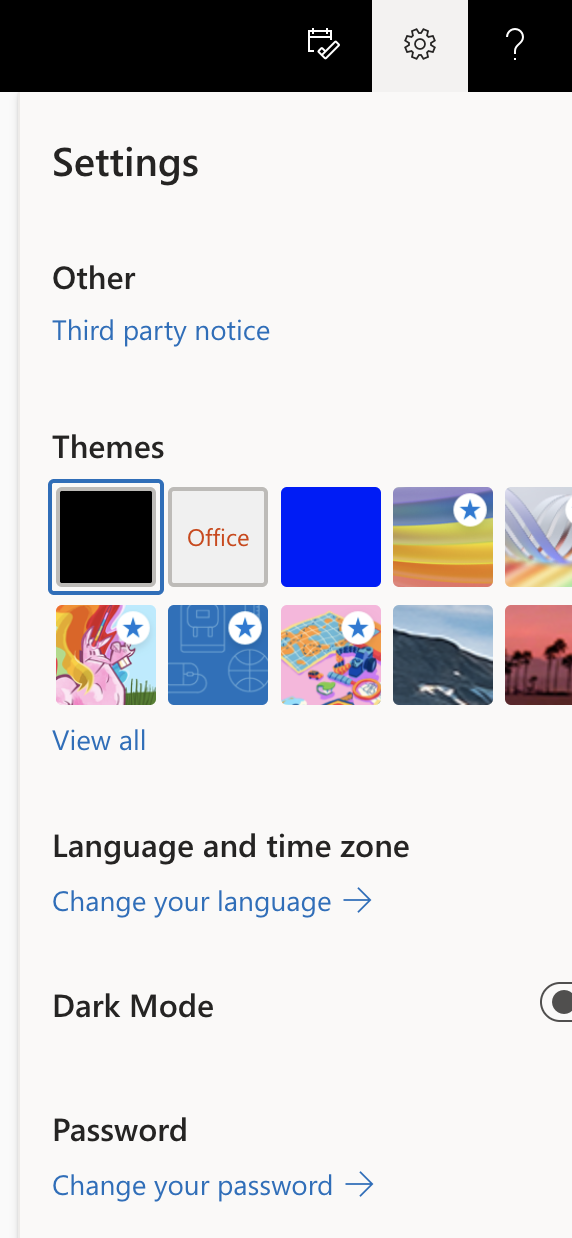
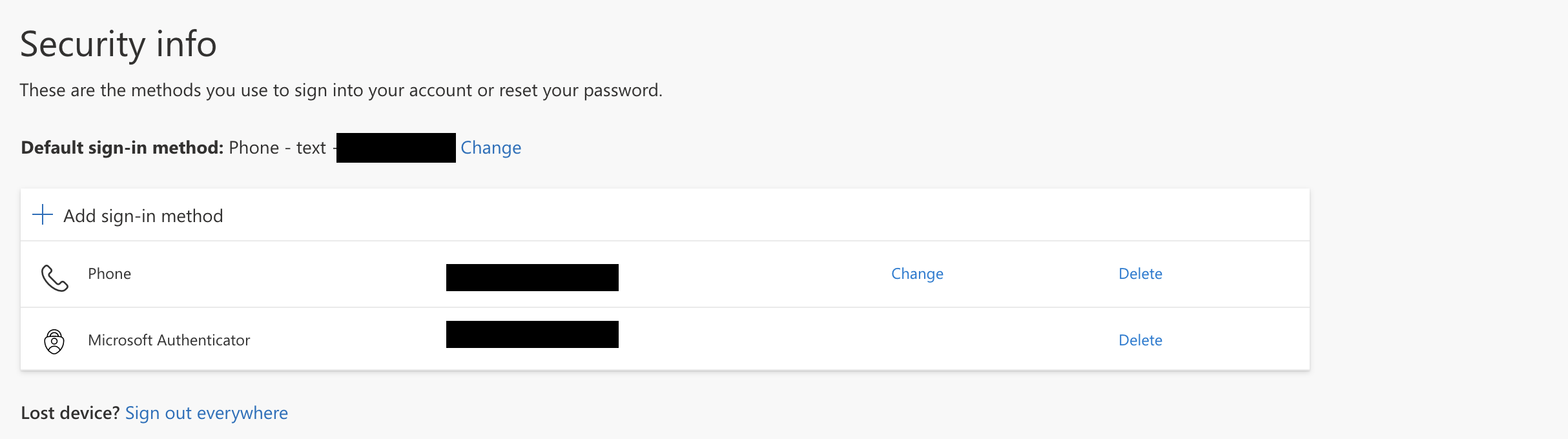
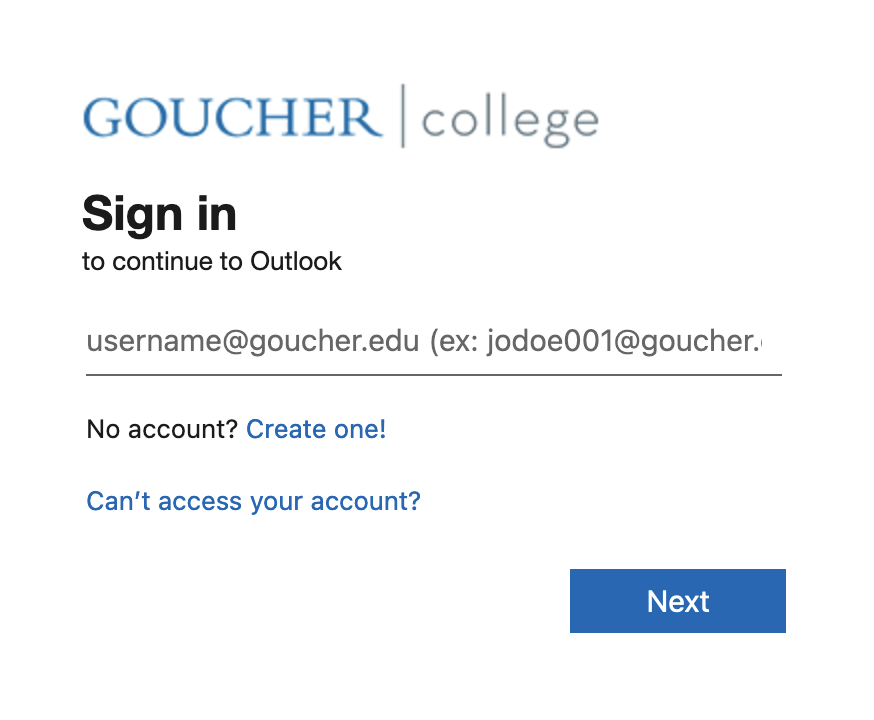
  5. From there, a Microsoft login page will pop-up. Type in your username in the ‘username@goucher.edu‘ format to sign in, and input your password. You may be asked to verify your login using Multi-Factor Authentication. See our article found here for questions on using MFA.
  6. Once signed in, you’ll see a green check-mark on the lock icon in the Cisco AnyConnect window, indicating you are connected to Goucher VPN.

Mac:

  1. Click the Spotlight icon in the top right, on the menu bar and type in “Cisco”
  2. Open “Cisco AnyConnect Secure Mobility Client.app”
  3. If you do not see Cisco in Spotlight Search, reinstall the application from Self Service on your Mac, or otherwise see our Setting Up a VPN Connection guide. You can also find the application within your Applications folder.
  4. Once open, type in “remote.goucher.edu‘ into the URL window, and click “Connect”
  5. From there, a Microsoft login page will pop-up. Type in your username in the ‘username@goucher.edu‘ format to sign in, and input your password. You may be asked to verify your login using Multi-Factor Authentication. See our article found here for questions on using MFA.
  6. Once signed in, you’ll see a green check-mark on the lock icon in the Cisco AnyConnect window, indicating you are connected to Goucher VPN.

Guide to Online Goucher Services for Faculty


NAME OF SERVICE LINK TO SITE WHAT IT DOES
MyGoucher My.goucher.edu
  • Use for official course roster and for grades
  • More support: MyGoucher FAQs
Canvas Canvas.goucher.edu
  • Use as a course website; enrollment is automatic
  • Share materials with your students
  • More support: Canvas Support Page
Canvas Studio  Canvas.goucher.edu
  • Actively collaborate with students through video and audio media
  • Share comments on a media timeline
  • Create video-format quizzes
  • More support: Canvas Studio Resources
Teams Video Conferencing Share meeting link with participants where needed, such as inside a Canvas course or through email.
Portfolium Link inside every Canvas course

Can also setup direct login at https://portfolium.com/join

  • Have students upload and reflect on showcase learning experiences
  • Used in some courses to assess Goucher Commons requirements
  • More support: Portfolium FAQs
e2 Campus Notifications Tinyurl.com/e2-campus-goucher
  • Receive information about weather-related delays or emergencies
Password change Password.goucher.edu
  • Update your Goucher password

Setting Up A VPN Connection

Description:

VPN, short for Virtual Private Network, is a type of connection from a computer on the Internet (a public network) to a private network (such as Goucher College). A VPN connection allows users who are away from campus to access files usually only available from computers set up in offices, classrooms, or labs in campus buildings.

Follow these steps to set up a remote VPN connection from an off-campus computer.

Note: If you already have Cisco AnyConnect Secure Mobility Client installed on your device, please see our article here for steps on how to connect.

Before you begin:

  • VPN will only work from off-campus and does not work when connected to the Goucher network on campus.
  • Check your computer to see if Cisco AnyConnect Secure Mobility Client is already installed. If so, launch this program to connect remotely.
  • A different connection is needed for access to library and research databases. To access the library’s electronic resources from off-campus go to the library homepage.

Steps:

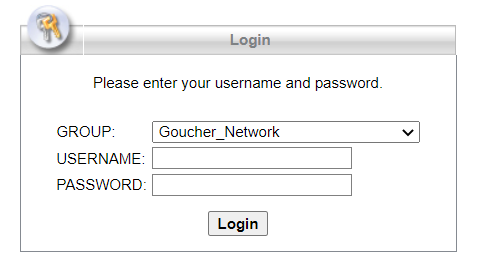
  1. Open a web browser and go to remote.goucher.edu.
  2. Select Goucher_Network from the Group drop-down list.
  3. Enter your Goucher username and password, then click Login.
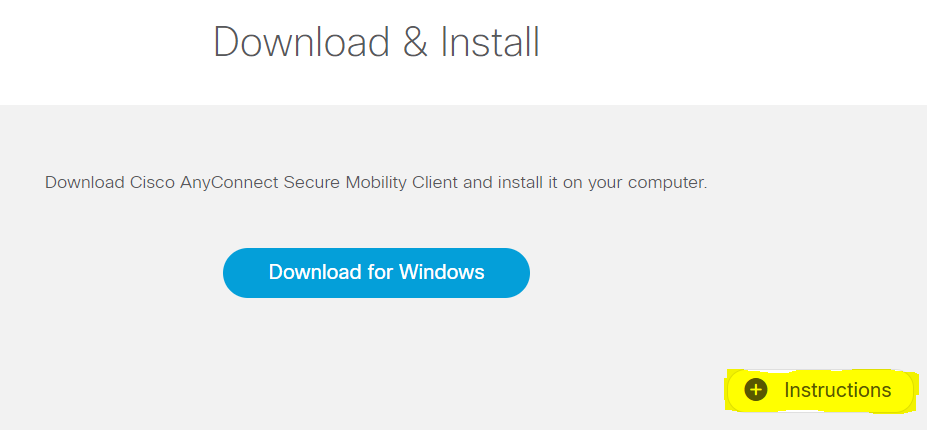
  4. The site will automatically detect your operating system and will provide the appropriate download link. Click the Instructions link and read the instructions for the remainder of the process.

    Note: On the last step of those instructions (Step 9), type in remote.goucher.edu as the VPN connection URL. Then you’ll be prompted to sign in with your Goucher credentials.

  5. Click the download link and follow the prompts.

If you run into any problems, please contact helpdesk@goucher.edu.

I am unable to access files on Darwin/Magellan. How do I know if it’s just my computer or a system wide problem?

First check to see if anyone else in your dorm room, floor or office is experiencing the same problem.  If so, then the problem could be system wide and you can confirm that by either checking the status online by going to our Facebook page.  You can also check via phone by dialing 6322 and select option 3.

I am getting intermittent connection to the network in my dorm room. Who do I contact to resolve this problem?

First make sure that you are only connected to the network using an Ethernet cable in your room.  If you also have wireless enabled, it may interfere with the wired connection.  Disable your wireless connection and see if the problem persists.  If you continue to experience problems with your wired connection please contact the Help Desk.

I’ve logged on to my office computer and am able to access the Internet and Outlook but, my network drives are not appearing. What should I do?

Network drives are mapped automatically through a program called Desktop Authority when you log onto your computer.  If some or all of your network drives are missing, log off and log back on to see if the drives will appear.  Please contact the Help Desk if that does not resolve the problem.

How to access Darwin or Magellan

Need to get to a file stored on the network from off-campus? Never fear!

Before you begin:

  • For faculty/staff workstations, if you are on campus, try logging off and back on again to reset your automatic server connections.
  • If you are off-campus, you must have a working VPN connection first. If needed, follow the steps in Setting Up A VPN Connection. A high-speed cable or DSL internet connection is required.

Download:

How to Access Network Folders [Windows 10] (4-3-2019)

How to Access Network Folders in Windows 7 & 8 (09-11-17)

How to Access Network Folders in MacOS (10-11-19)