Jamf Connect is software that allows for Goucher students, faculty and staff to sign in to the Mac labs and kiosk machines using your Microsoft credentials.
How to Sign in:
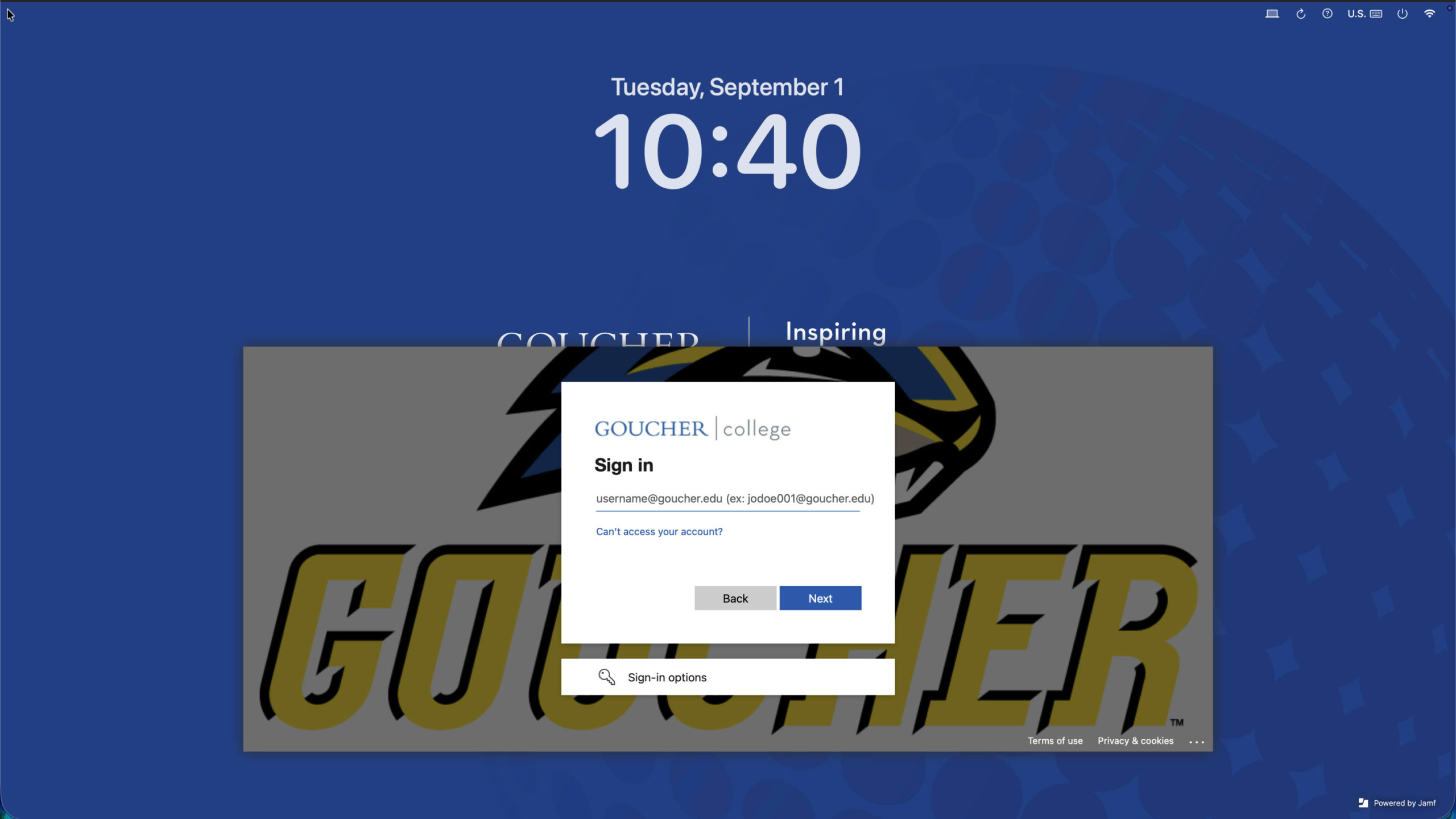
When you first sit down in front of an Apple computer using Jamf Connect it will present the window above. Here you want to sign in using your full Goucher email that is the short username, e.g. jadoe002@gouceher.edu.
Local Account Sign in:
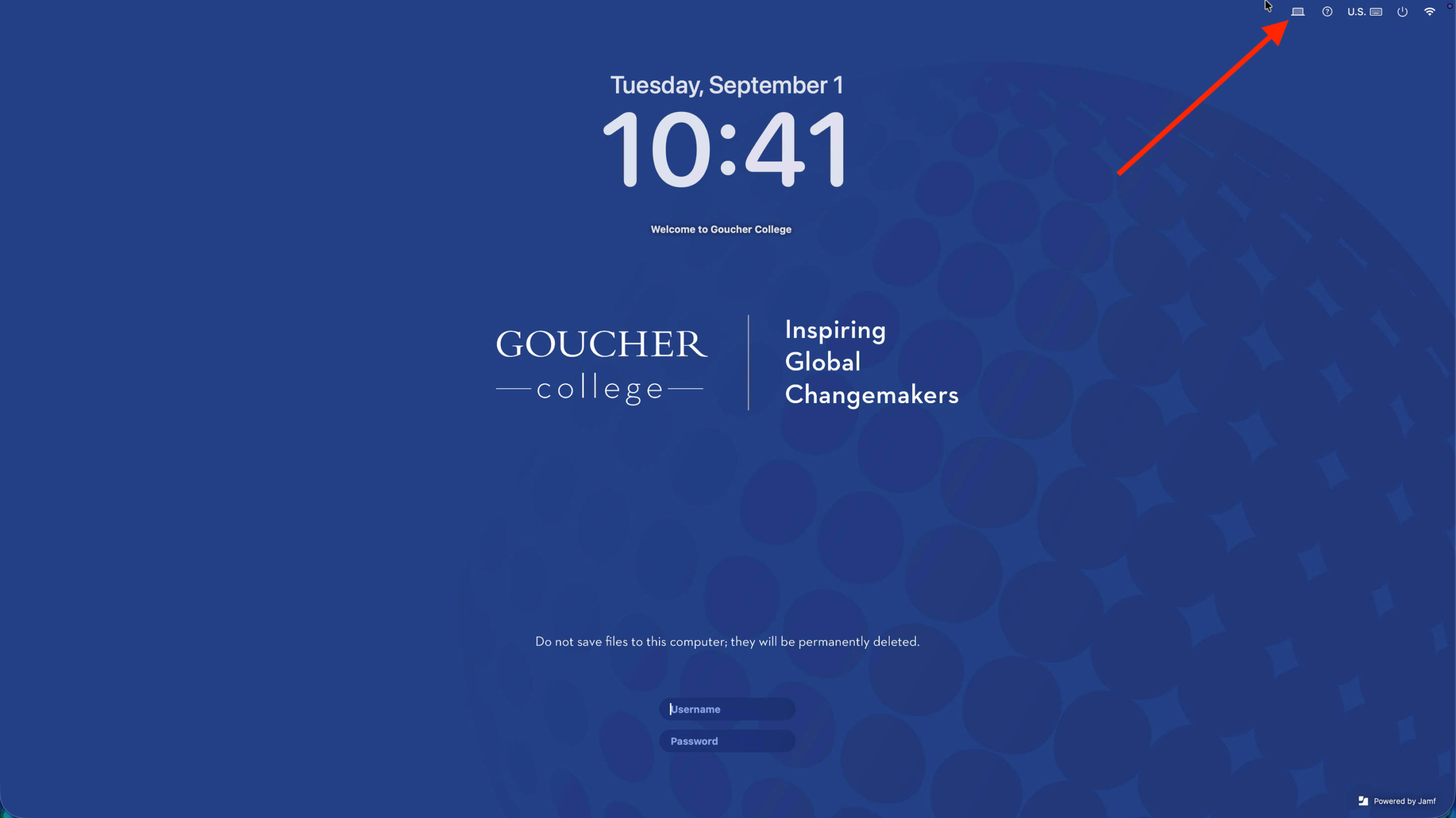
For the Library only users without a Goucher ID can sign into any of the Mac Mini’s using the local login window. Click on the computer icon in the top right and the local login screen will appear. The local login account and password can be obtained by a library staff member.
Login Screen Menu Bar:
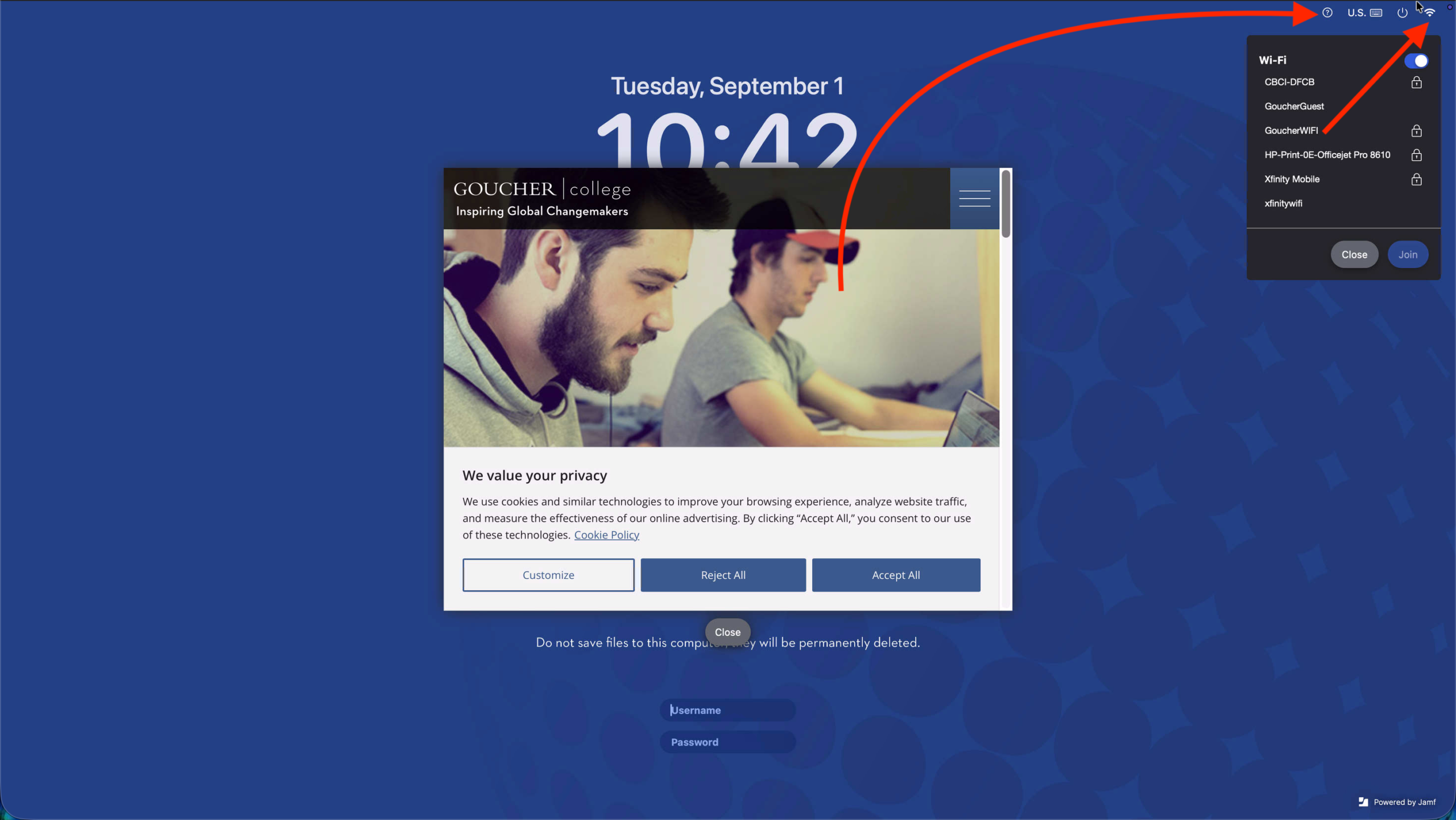
Some helpful resources with Jamf Connect are the Info tab which is a ? in a circle. That will bring you to the Goucher IT page if needed for contact info. The WiFi button in the top right will allow you to choose the WiFi if for some reason it is not connected. You can also reboot the computer using the power icon and there is a refresh button as well, which will refresh the login window.
Desktop Screen Menu Bar:
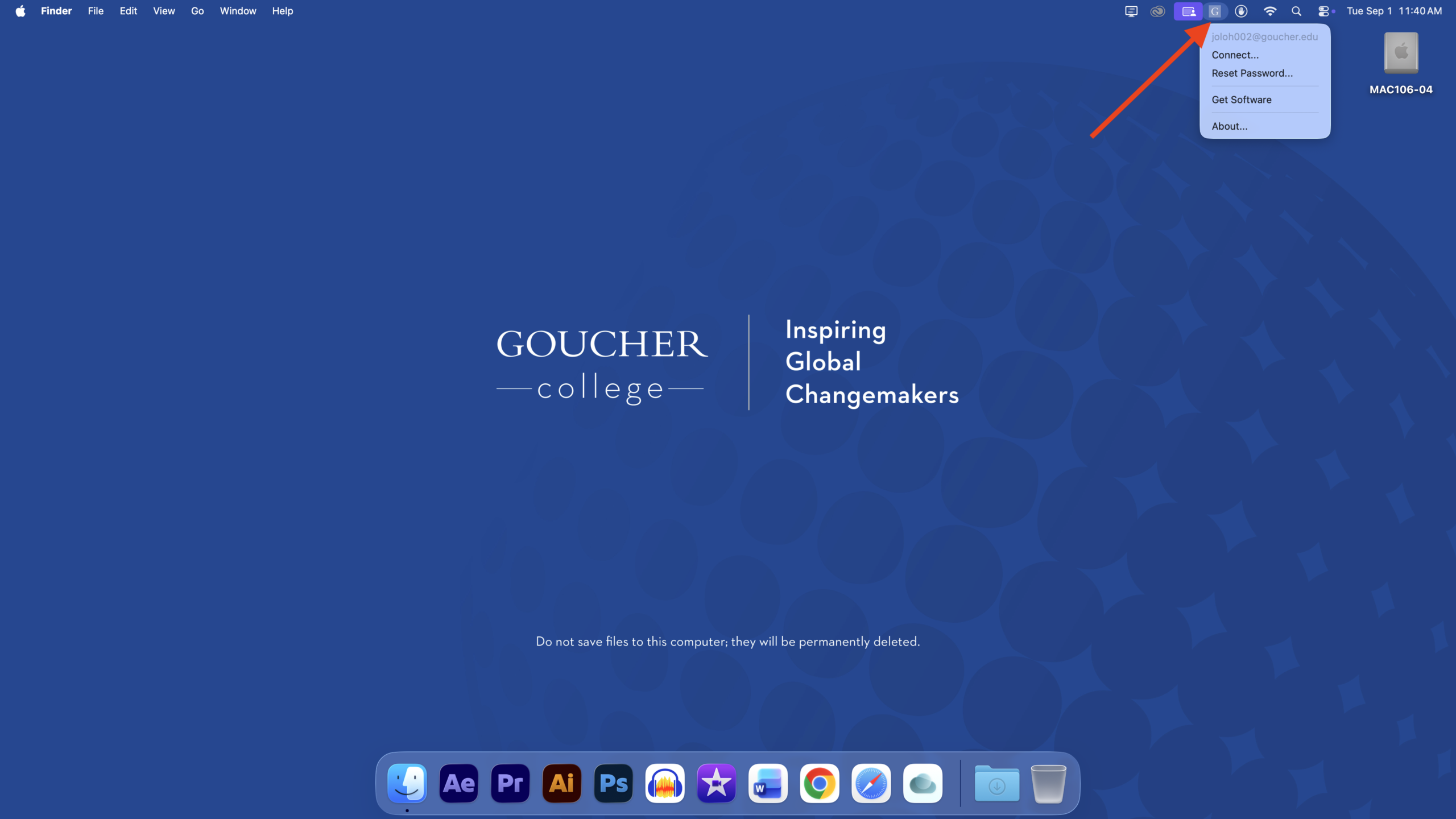
When you’re at the desktop there is a menu bar icon with the Goucher “G” in the top right. That will allow you to reset your Goucher login password. Other options like Connect, Get Software and About are provided as well. Connect will make sure your account is in sync with Jamf Connect, Get Software will bring you to Self Service + and About will provide info on Jamf Connect.
Computer Name at Login:
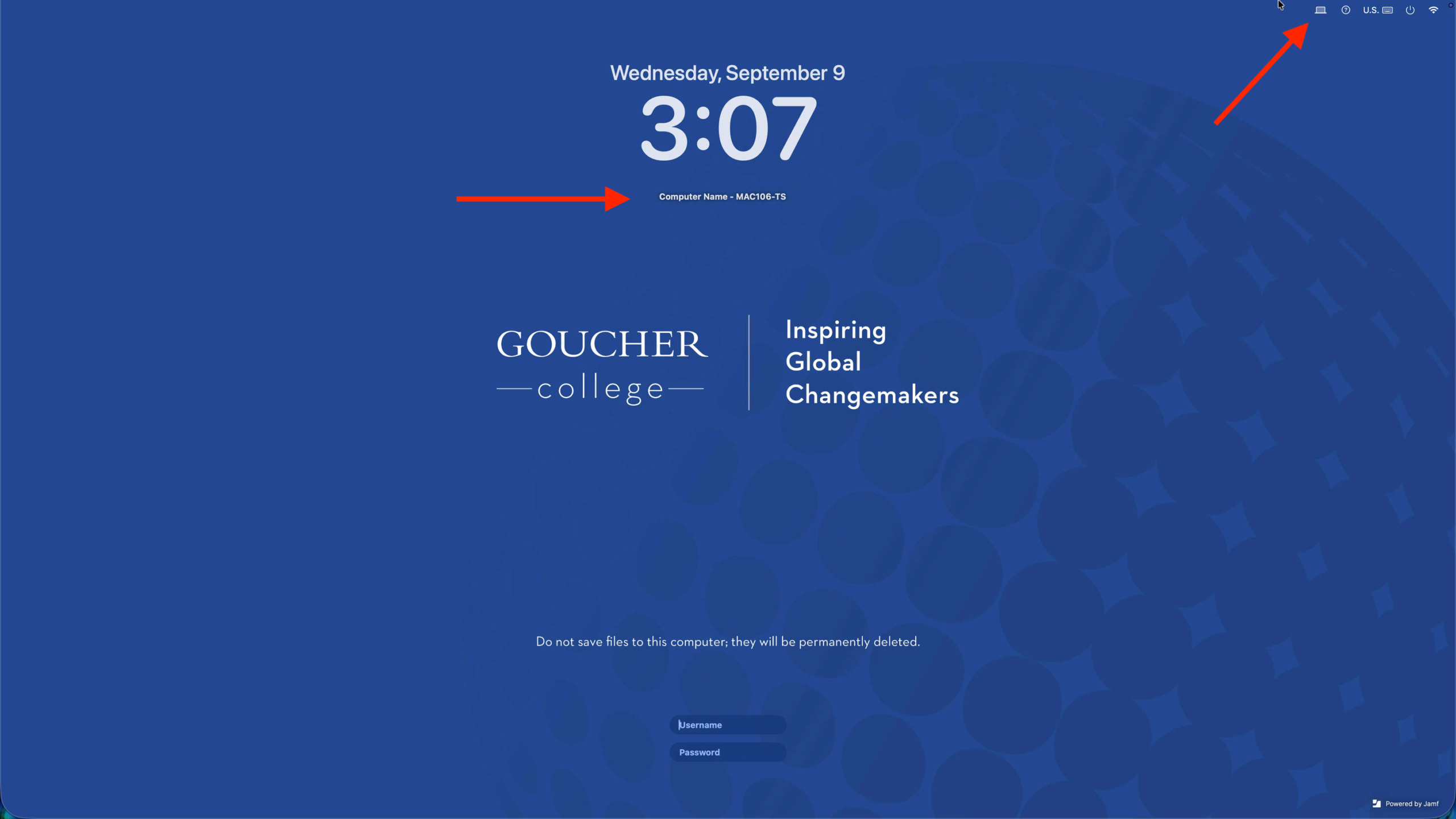
If you need to know the computer name, you can easily find it by clicking on the computer icon top right. Below the clock the computer name will appear. Providing the computer name when creating a ticket will help IT resolve the issue much faster.
Troubleshooting Jamf Connect:
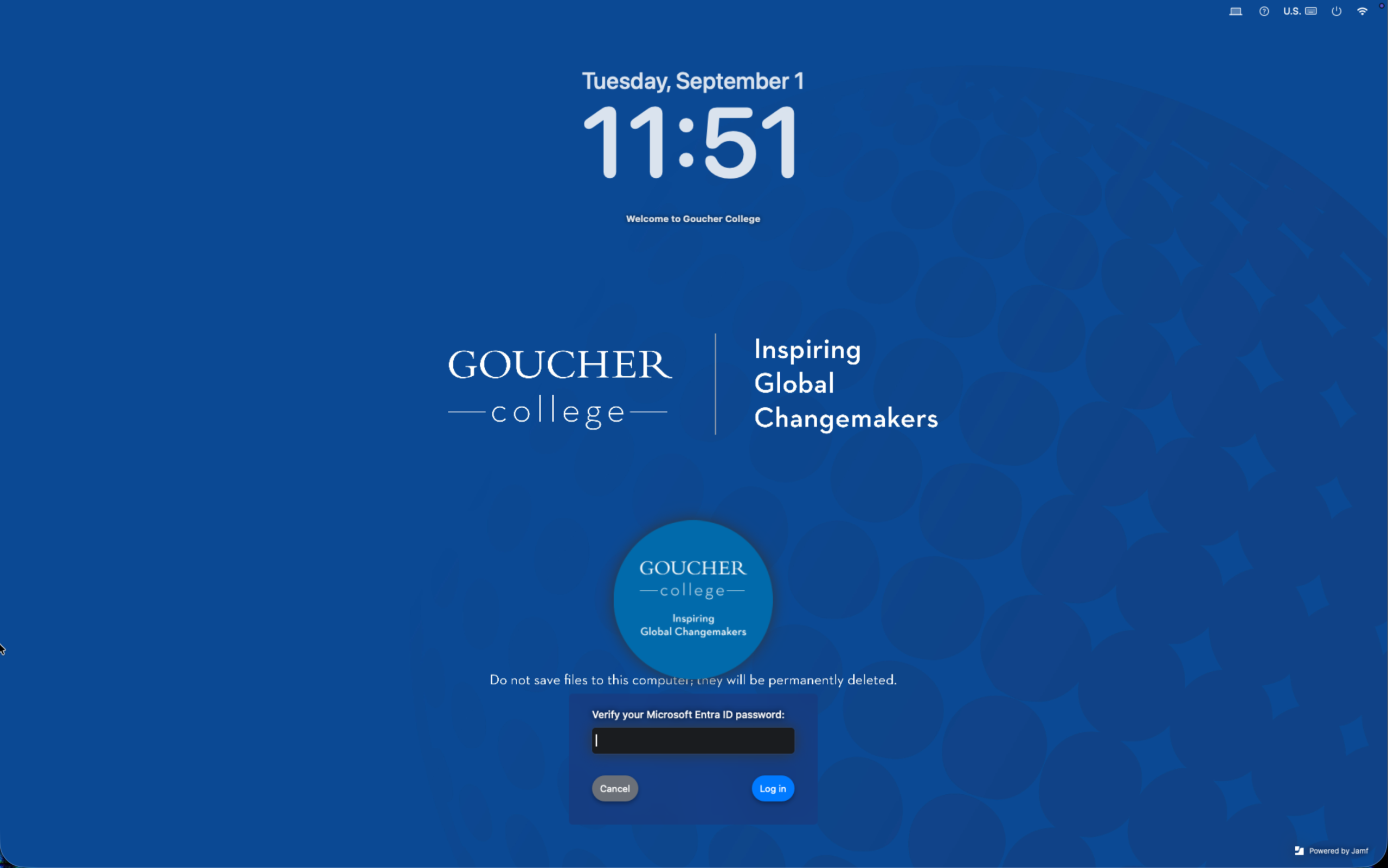
If you sign in but do not land on the desktop, you may be asked for your password again. This screen indicates that the local account is out of sync with the users Goucher credentials. This will happen if the user just changed their password. Jamf Connect does not know that the user changed their password, as it does not handle passwords directly. So if a user changes their password this screen shows up and the old password is then needed in order to sync with the users Goucher credentials. Sometimes you may see another account listed here, unless it is your account do not click on it, as it will attempt to sync to that account.
If the computer is not connected to the internet you will notice the Goucher branded login is missing. It will look like a regular macOS login window. So if you are in a lab full of computers that have the Goucher branded login and one doesn’t have that check the internet connection. Reseat the ethernet, WiFi can be selected from the login window in some cases. If the login window does not reload on its own and you have reconnected to the internet, reboot the computer and see if the branded login window appears.
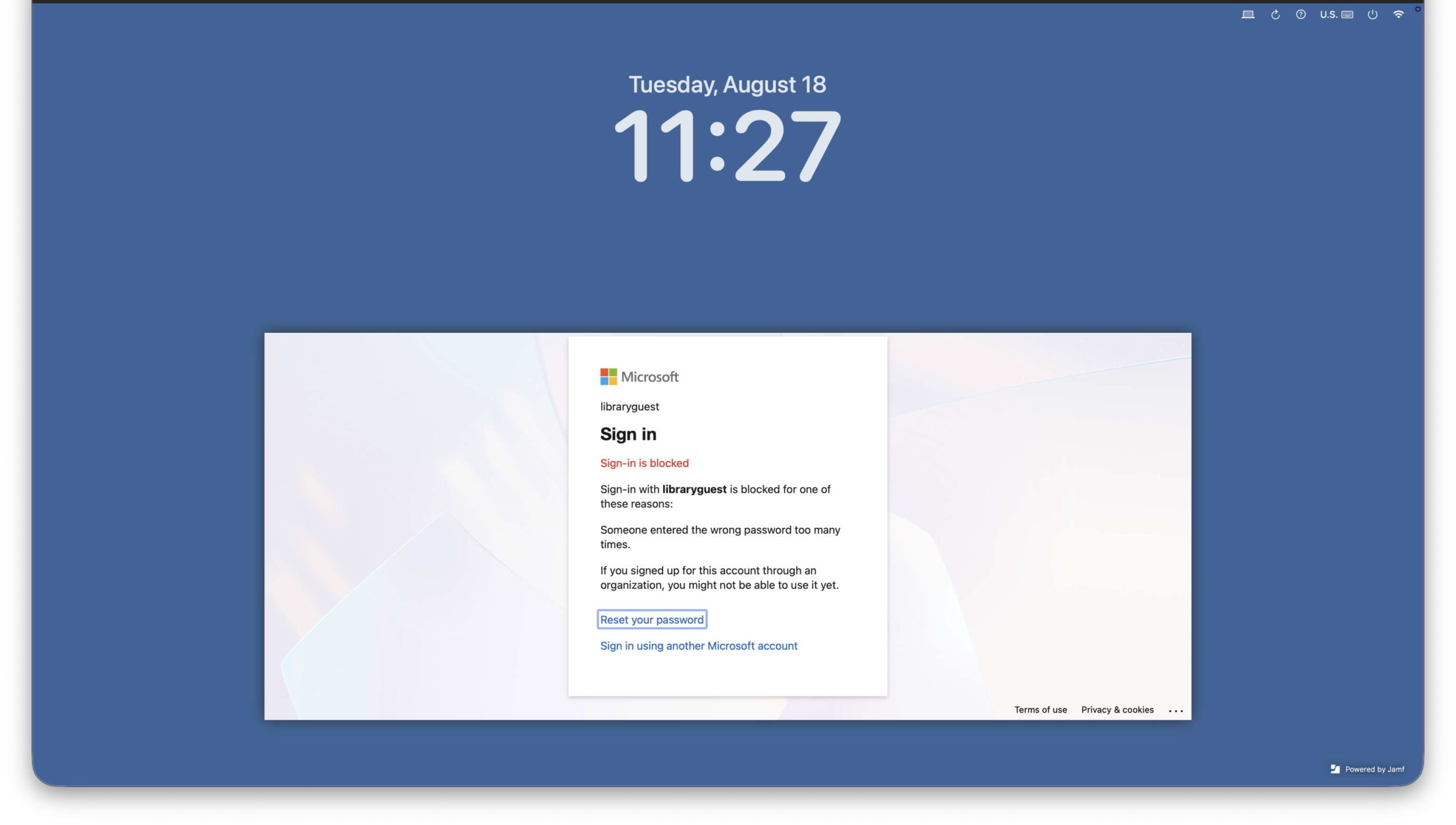
This error above happens when you do not put in the full email address. You must use the format jadoe001@goucher.edu.
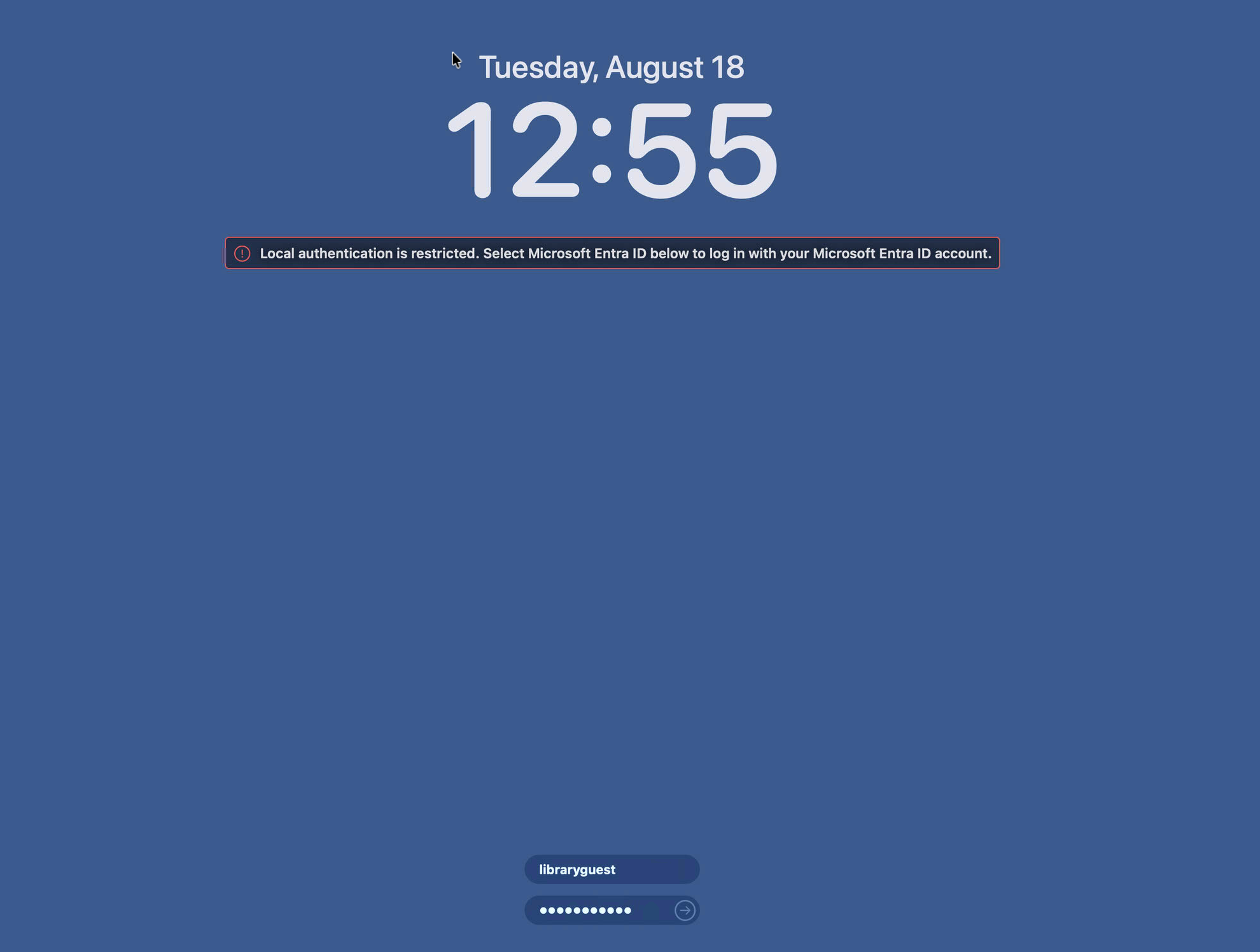
This error means that local accounts are being denied. This is a bigger issue but try refreshing the window or rebooting the machine. If that doesn’t work submit a ticket. If you are an IT employee please try signing in with the gctech admin account, logout and have the user try again. When making a ticket please provide a screenshot or the error text.



 next to your profile picture at the top of Teams and then choose Settings > Devices.