Author Archives: training

Using OneDrive

Included with your Office 365 account, OneDrive is an unlimited cloud drive similar to Box, Drop Box, and Google Drive. Using OneDrive to store computer files saves hard drive space, and makes sharing files and folders with other Goucher faculty, staff, and students easy. When you create or edit a document saved to OneDrive, from any location or any device, changes will automatically save back to your OneDrive account. 

Learn More

General Information from Microsoft

Below are links to articles written by Microsoft support to help you get started using OneDrive. Please contact the IT Help Desk if you have any questions or need assistance with the install or an update.


resource description
OneDrive Quick Start Guide A visual map of the OneDrive screen on browsers and the mobile app.
OneDrive Video Training Series Short video tutorials on OneDrive features. Note – Goucher accounts are OneDrive for Business Accounts.
OneDrive Help and Learning Dashboard Includes the links below and many more.
Installing OneDrive for Windows/Mac/Mobile If you have Windows 10 or above, OneDrive is already installed on your PC. Use this link if you’re using a Mac, another version of Windows, or want to use the OneDrive mobile app,
Uploading and saving files and folders to OneDrive Step-by-step guide on saving files/folders to OneDrive
Syncing files and folders between the web (cloud) version and your computer Step-by-step guide on syncing files between OneDrive and your computer
Sharing OneDrive files and folders Step-by-step guide on sharing OneDrive files/folders
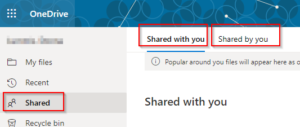
Viewing Shared Folders (and Adding to My Files for quicker access) When someone shares a folder with you, it appears in the Shared section of your OneDrive account on the web. If you have Edit permissions to those shared folders, you can add them to the My files section of your OneDrive to make them easier to access and work with.
Creating a File Request This is a useful feature! With the file request feature in OneDrive, you can choose a folder where others can upload files using a link that you send them. People you request files from can only upload files; they can’t see the content of the folder, edit, delete, or download files, or even see who else has uploaded files.

More About Finding Folders Shared With You

Note that files/folders shared with you will always be available to you on the web from the Shared space, but only items in the My Files space will automatically appear in File Explorer or Finder on your computer. To add shared items to My Files, follow the steps below.

  1. Open your OneDrive account online.
  2. Navigate to Shared.
    OneDrive Shared Files
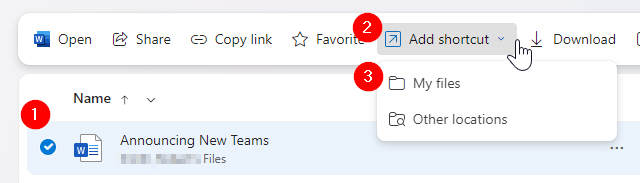
  3. Select one or more items, click “Add shortcut” on the toolbar and select “My Files”.
    Alternatively, you can also right-click on an item and select “Add Shortcut“.
Using Favorites to Find Frequently Used Files

Another tip for organizing your OneDrive content is to Favorite items you work with often.

  1. Open your OneDrive account online.
  2. Navigate to My Files or to Shared.
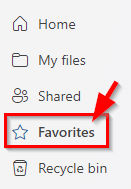
  3. Select one or more items and click “Favorite” on the toolbar. Alternatively, you can right-click on an item and select “Favorite“.
  4. Navigate to “Favorites” on the OneDrive navigation panel to find these items in the future. You can also declutter this file list as needed by selecting a file or files from this area and choosing “Unfavorite” from the toolbar.
Goucher Zoom Accounts

Goucher College provides basic* Zoom accounts to all faculty, staff, and students. *For meetings over 40 minutes long, Goucher used Microsoft Teams.* Use the following instructions to get started, test your settings, see tips, or get technical assistance.


Sign In / Create an account (Web browser) 

Accounts are created automatically the first time a user logs in successfully on our site.

    1. Go to http://goucher.zoom.us and click Sign In (NOT Sign Up) to launch a Goucher login page* with a campus picture on it.
      *If the Sign In link or Goucher login page do not appear, your browser is logging you in  to a Zoom account automatically. To sign into a different account, you will need to…
      – Click your profile icon and choose “Sign Out”, then CLOSE YOUR BROWSER
      – Open and sign-out of the Zoom software installed on your Mac or Windows computer, then CLOSE THIS SOFTWARE
      – Restart your browser and start step one over.
      *You might be prompted to “switch accounts” if you previously had a personal Zoom account registered under your Goucher email address. This is correct. Please follow all prompts and instructions for switching your account over to Goucher’s hosted site.
    2. Enter your Goucher username@goucher.edu (NOT email) and password to continue. A basic account will be created for you automatically. 

Sign In From Desktop Software

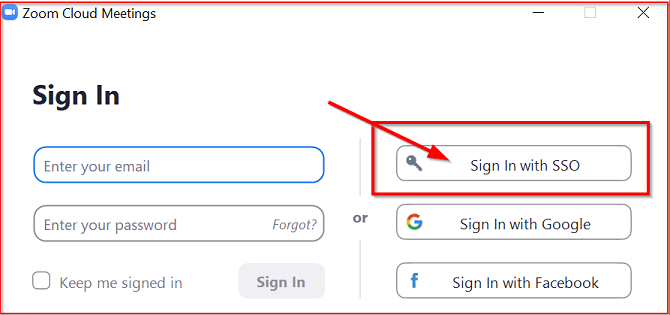
Once your account is created (see above), you will often be prompted to “Open Zoom Meetings” to join or run meetings using the Zoom desktop software. Should you need to sign-in from the software screen, click the “Sign In with SSO” button, and then type goucher as the company domain to proceed.


Join A Test Meeting

You can join a test Zoom meeting to familiarize yourself with Zoom controls and test your microphone/speakers before joining a Zoom meeting. You can also test your video or audio while in a Zoom meeting. Note that users in a Zoom test meeting are added as participants, not hosts, so host features such as sharing and recording are not available for testing.


Use Zoom Outlook Plug-In

The Outlook Plug-in for Zoom is available to add to your Outlook calendar for synchronized meeting scheduling. The plug-in is available to download and install on the Goucher Zoom site meetings screen. When prompted to Sign In, click the “Sign in with SSO” button underneath the password fields, and then type goucher as the company domain to proceed.


Add Live Transcriptions to Your Meeting as a Host

Zoom hosts can enable a side panel in their meetings that automatically transcribes spoken words to text for participants to follow (much like closed captioning).  Here’s how…

IN-MEETING FOR HOSTS

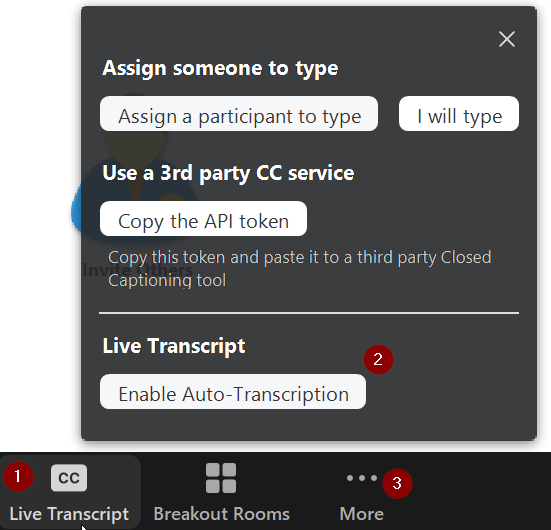
When hosting a meeting, click the LIVE TRANSCRIPT button on the host toolbar (1), and then select ENABLE AUTO-TRANSCRIPTION from the pop-up window (2). If your window is too small to display the entire host toolbar, you will need to click the MORE (3) button first.

IN-MEETING FOR PARTICIPANTS:

When enabled by the host, you will see a notification above Closed Caption/Live Transcript in the meeting controls, informing you that one of these services is available. If live transcription is available, click Live Transcript, and then select Show Subtitle.


VIEWING IN CLOUD RECORDINGS:

Audio transcription is turned on for cloud recordings by default*. When recordings are played, the transcribed text appears on the right-hand side of the video. To display the transcript as closed captions while playing a recording, click the CC icon at the bottom right of the screen.
*Note that the audio transcript may take additional time to process after the cloud recording video/audio has processed.

For more detailed information on downloading, viewing, and editing audio transcription saved to a cloud recording, visit this Zoom Support article.


Get Training and Technical Assistance

Have a question about using Zoom? We rely on the Zoom Help Center to provide technical assistance for our Zoom users. Refer to this this page first for helpful instructions, training videos, and answers to questions about how to use Zoom. The video tutorials are particularly useful.

Goucher users can submit a support request to Zoom by online submission or by initiating a chat using the chat bubble available on the Zoom web page.

Questions not answered after contacting the Zoom Help Center should be directed to helpdesk@goucher.edu.

Report a Classroom Emergency (Faculty)

When should faculty call the classroom emergency line vs. the Help Desk?

Call or email the Help Desk when you need to:

  • Schedule for assistance for your class ahead of time
  • Review the equipment in a new room
  • Report a problem that occurred after hours or didn’t disrupt the class

Call the Classroom Emergency line when your class is already in session and the AV system isn’t working. There may be a delay if you call the Help Desk number. When you do need emergency assistance, call 410-337-3290 and leave a message with the following information:

Name

Room

Description of problem

Call back number

We highly recommend saving this number as a contact in your cell phone. Classroom emergency support is available Monday through Thursday, 7:30am to 8pm and Friday, 7:30am to 7pm during fall and spring semesters.

Canvas

Instructors

Students

Get Help

The Canvas Support Team is ready to help you. They are available 24/7 (holidays too). Click the Help icon in the Canvas navigation panel to access an online trouble form, live chat, or phone number. You can also send an email to support@instructure.com.


Setting Up A VPN Connection

Description:

VPN, short for Virtual Private Network, is a type of connection from a computer on the Internet (a public network) to a private network (such as Goucher College). A VPN connection allows users who are away from campus to access files usually only available from computers set up in offices, classrooms, or labs in campus buildings.

Follow these steps to set up a remote VPN connection from an off-campus computer.

Note: If you already have Cisco AnyConnect Secure Mobility Client installed on your device, please see our article here for steps on how to connect.

Before you begin:

  • VPN will only work from off-campus and does not work when connected to the Goucher network on campus.
  • Check your computer to see if Cisco AnyConnect Secure Mobility Client is already installed. If so, launch this program to connect remotely.
  • A different connection is needed for access to library and research databases. To access the library’s electronic resources from off-campus go to the library homepage.

Steps:

  1. Open a web browser and go to remote.goucher.edu.
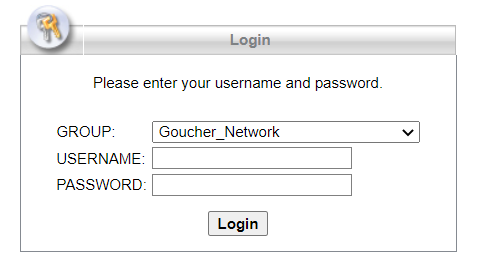
  2. Select Goucher_Network from the Group drop-down list.
  3. Enter your Goucher username and password, then click Login.
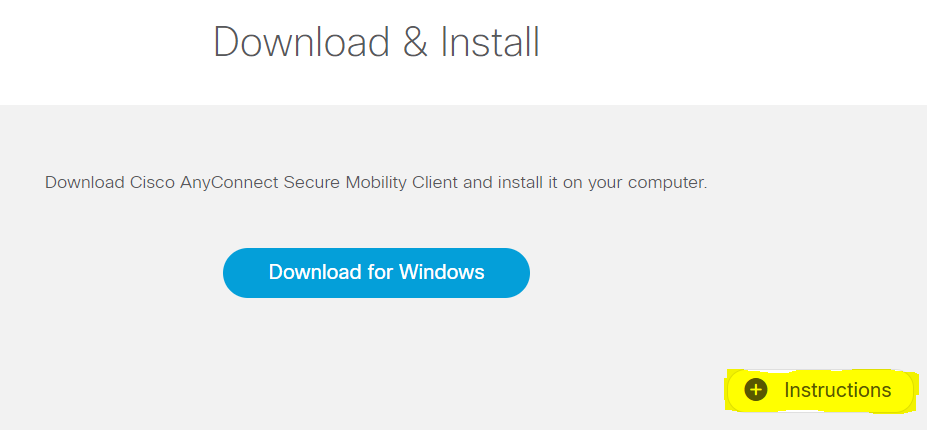
  4. The site will automatically detect your operating system and will provide the appropriate download link. Click the Instructions link and read the instructions for the remainder of the process.

    Note: On the last step of those instructions (Step 9), type in remote.goucher.edu as the VPN connection URL. Then you’ll be prompted to sign in with your Goucher credentials.

  5. Click the download link and follow the prompts.

If you run into any problems, please contact helpdesk@goucher.edu.