Important Change Coming
Canvas will retire Portfolium (Folio) on June 30, 2026.
After this date, the new Portfolio tool will be the only option available in Canvas. To prepare, faculty and students should begin using the new Portfolio tool and plan their transition before the retirement date.
Portfolium FAQs
What is Portfolium?
Portfolium is a public space where students (and faculty!) can demonstrate the skills they have learned throughout their educational career! Learn more at What is Portfolium Network?
How do I login to Portfolium?
Quick Answer
Easy! There are two ways to get to your account.
Option 1 – Canvas: Log into Canvas, navigate to your profile, and click on the “Folio” link to open your Portfolium page. From here you can add a project directly, or click on a link under your name to launch your Portfolium account in another window.

Option 2 – Portfolium Web Site: Set up your own permanent account and login through https://portfolium.com/login
Haven’t created your account yet? No problem!
Go to https://portfolium.com/join and use your Goucher email address to set up your own password. Your Portfolium account will remain your personal account after you graduate and is separate from all other Goucher accounts.
For more information, visit: Portfolium Introduction
Where can I get help?
Visit the Portfolium How-To Guides anytime to get advice and answers to your Portfolium questions!
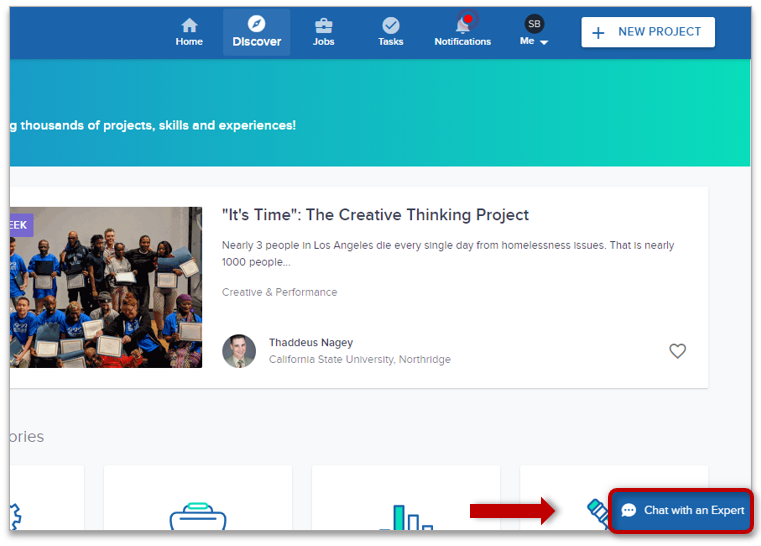
Need one-on-one help? Not a problem! To get assistance ASAP, click the blue conversation “Chat with an Expert” box in the bottom right of the Portfolium web site page to start a live chat with Portfolium’s Help Desk.
How can I make a Portfolium assignment in Canvas (faculty)?
The best way to create a graded Portfolium assignment is to have students share the link to their uploaded project with you. When a URL is submitted as an assignment, Canvas takes a screenshot of the web page at the time it was submitted. Below are the steps to creating an online assignment in Canvas and a screenshot to use as a guide for getting started.
- Begin by adding an assignment as usual.
- Set the following settings:
- Set Submission Type to “Online”
- Online Entry Options will appear. Check “Website URL”.
- Complete the rest of the assignment settings as you like, and then Save & Publish.

As long as students haven’t set their project’s visibility to “private”, you will be able to view their project from the URL they submit in the assignment area. You can even view and grade their work from Speedgrader like any other assignment. For more information, visit https://community.canvaslms.com/t5/Instructor-Guide/How-do-I-create-an-online-assignment/ta-p/950#select_online_submission_type.
Can I add my Resume (and other stuff) to my Portfolium (student)?
To edit your Profile section, you must first login to Portfolium. Once you are logged in you can add and edit your profile’s information such as Education, Volunteer Work, Accomplishments, and more!
Just pick and choose which modules you’d like to add to your profile. You can even upload a resume you’d like to share, as well as edit and attach work samples into your portfolio to show off some of your great work!
For more details visit:
How do I make a collaborative project?
Want to highlight the collaboration done in a project? No problem!
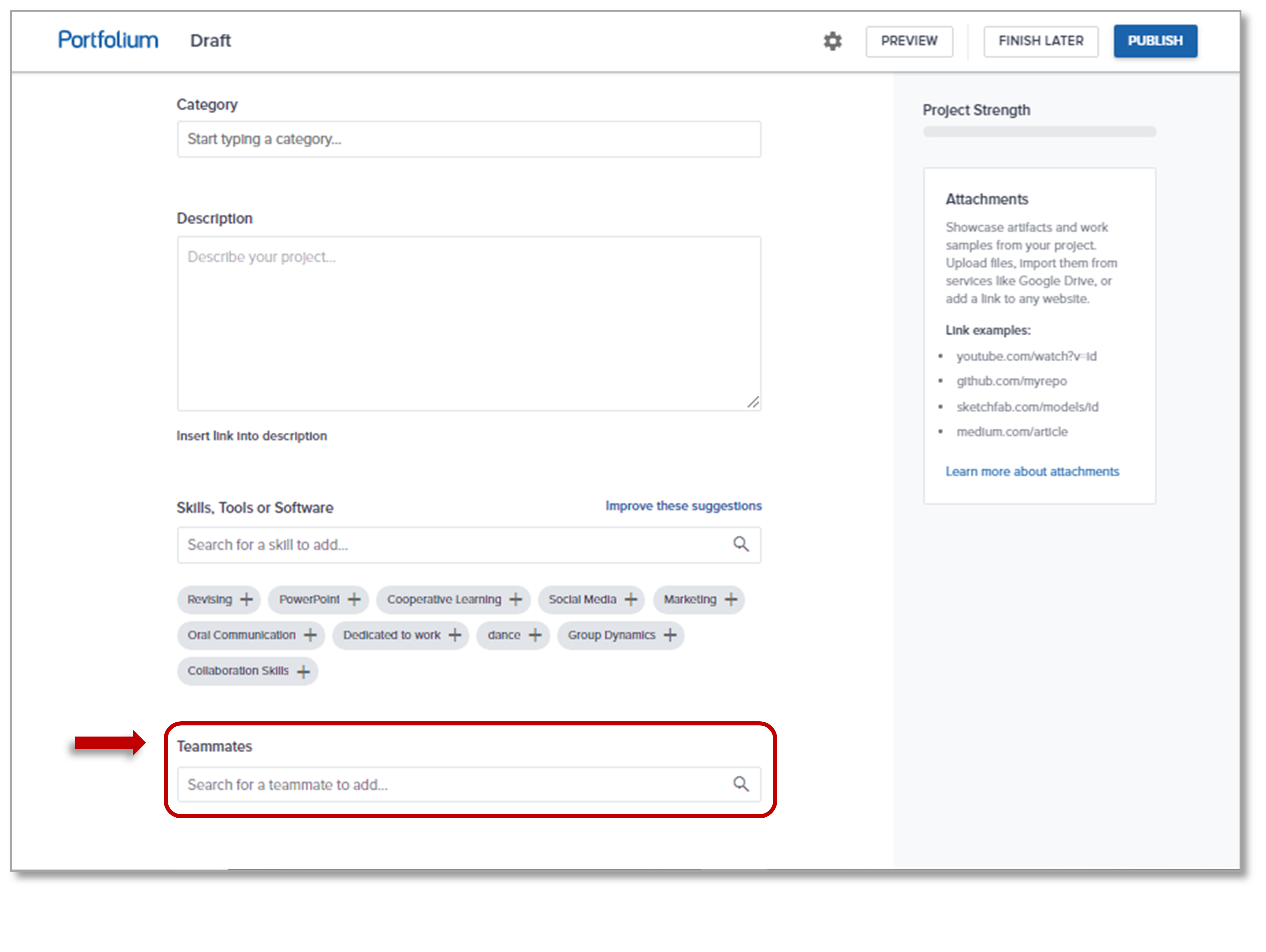
Teammates in Portfolium are the collaborators, friends, and classmates that you’ve worked with on a project. Just tag them in you entry to show who you’ve collaborated with (Note: the tag entry you make will show up in your teammate’s Portfolium as well).
To tag your teammate(s) in your entry, just add the name(s) of your teammate(s) in the Teammates section near the bottom of page when in Project Editor mode (Note: the teammates you tag must be a member of Portfolium).
For further details, visit: How do I add Projects to my Portfolio?
What’s the best way to find information on Portfolium?
We’re glad you asked! Maybe you’re looking for a specific person, a job, or even a specific skill inside someone’s portfolio. To help you out, we made this really short video with tips on how to find what you’re looking for.
For further details, visit: https://portfolium.com/discover
How do I find someone else’s portfolio?
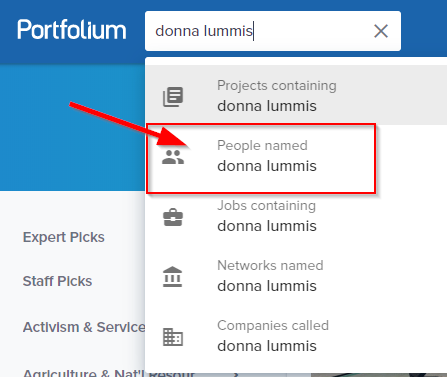
Portfolium accounts are easy to find using the search area at the top of the screen. If you’re already logged in, you’ll find it at the top left. You can also bypass the login screen by going directly to http://portfolium.com/discover.
For further details, visit:How do I find connections on Portfolium?
What’s so special about skills, as opposed to tags? Hint: One is a filter inside a portfolio
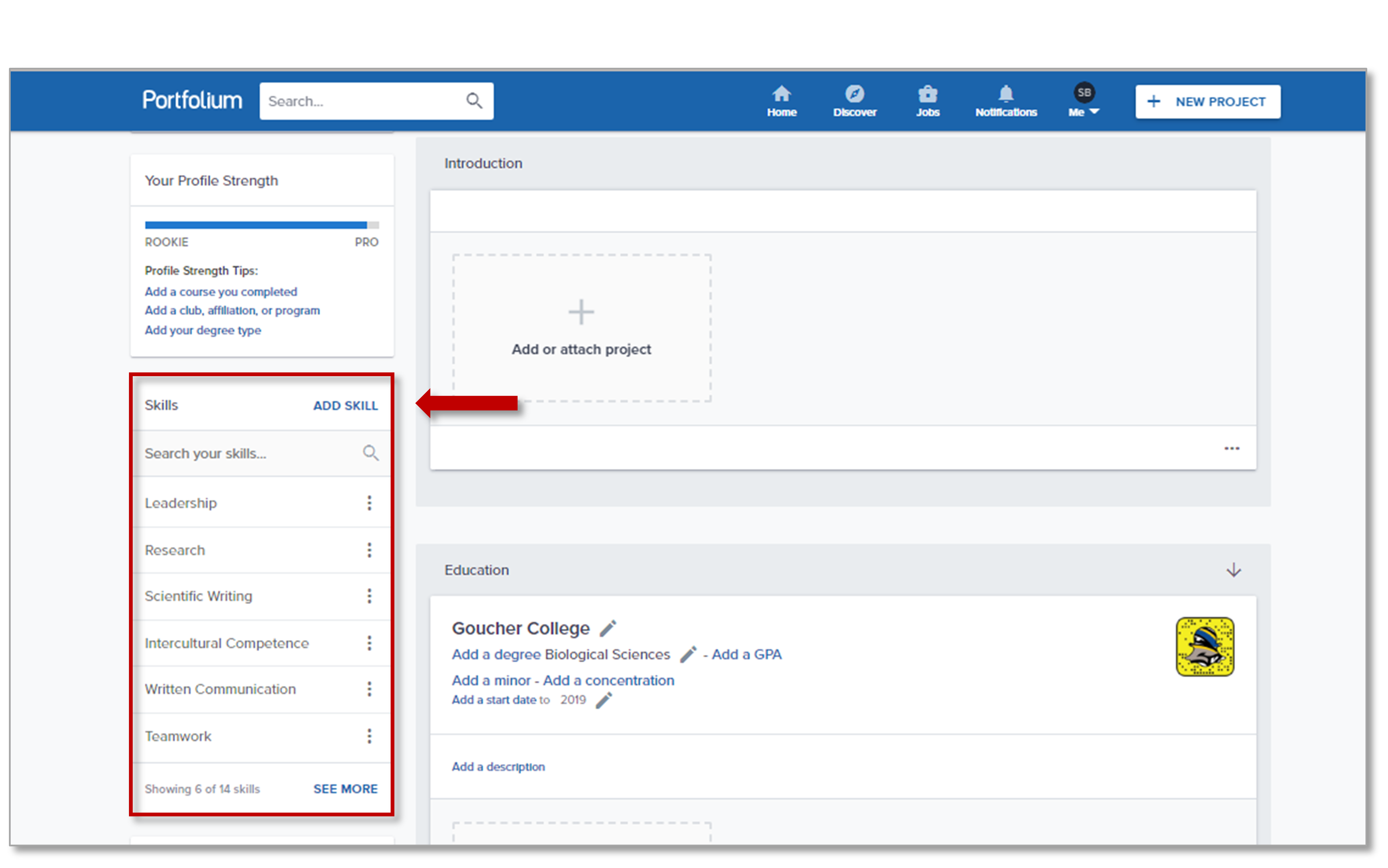
Skills are a great way for viewers to filter specific skills used in projects that you have submitted to your portfolio. The “Search Your Skills” tool is useful when you want to quickly navigate to an entry in you portfolio that you have tagged with a specific skill.
For example, you’d like to show a professor an example of your “Writing” and “Teamwork” skills. Just go to your Profile > navigate to the “Skills” section> and click on your specific skill to filter your work.
For more, visit: How do I add Skills to my profile?
Tags (Hashtags), can be added by students to help describe entries they’ve made in their portfolio. It’s also a great way to associate a project with topics on Portfolium.
For more details, visit: https://community.canvaslms.com/docs/DOC-17877-914801149587
Is there a way to share my Portfolium profile to outside users?
Quick Answer: Yes! Once you’ve register to Portfolium, you will be given an auto-generated personal URL of your Portfolium profile (Note: Your Portfolium profile and entries must be set to public in order to make your profile link accessible).
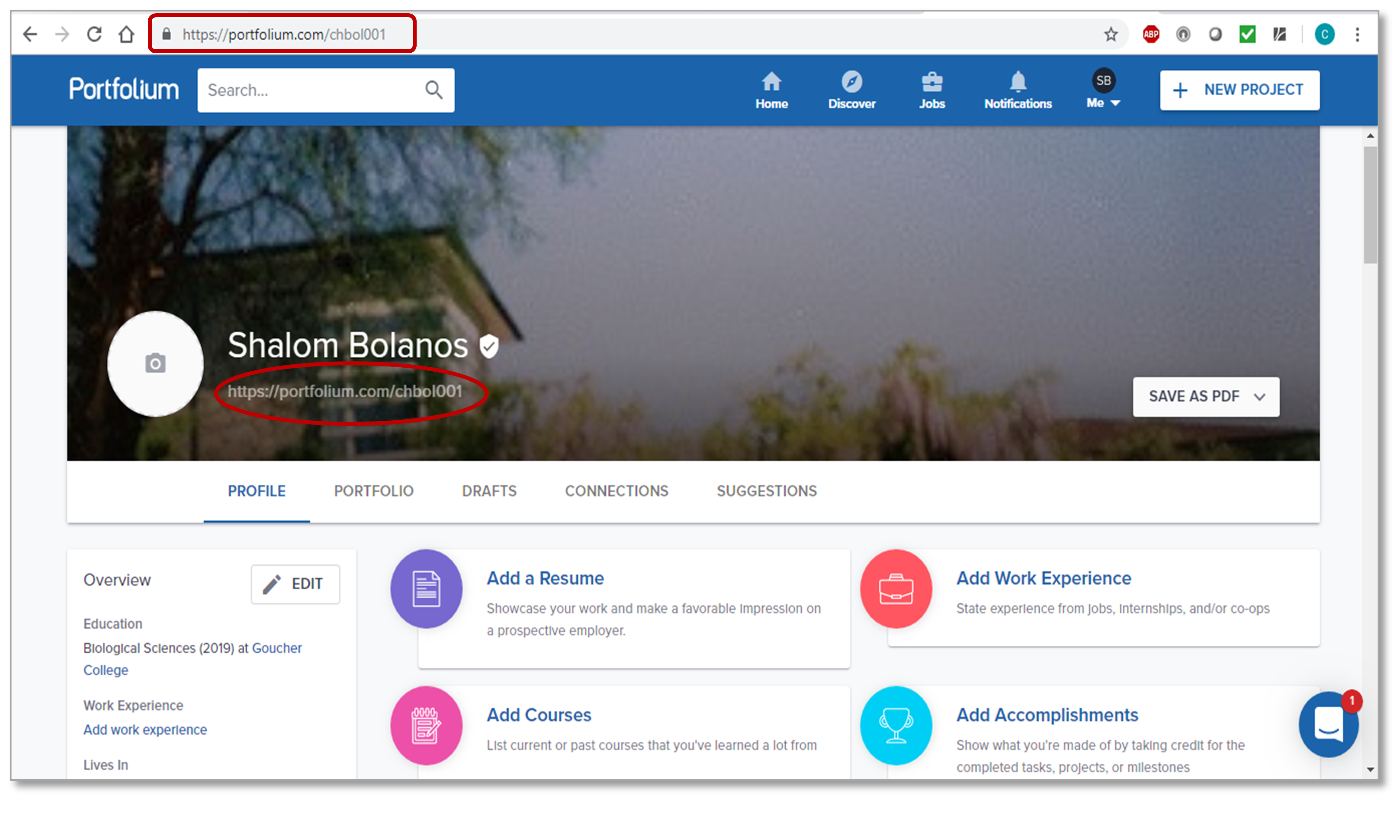
For further details, visit: https://community.canvaslms.com/docs/DOC-17868-914801149816
What is the difference between my Portfolium profile and portfolio (student)?
Think of your Portfolium profile as an introduction to you; it’s a place where you can show your past and current work experience, course work, activities, accomplishments and more. It’s all about what makes you unique!
Your Portfolium portfolio is place where you can showcase all of the great work you’ve completed over you educational career. Think of it as a place where you can provide digital proof of your skills, experiences, and achievements over time. You can include documents, videos, graphics and more!
For more details, visit: https://community.canvaslms.com/docs/DOC-17862-914801148305
Why aren’t my students listed after I’ve created my Portfolium assignment (faculty)?
Quick Answer: Student names will begin to appear in the assignment status page once they have opened that assignment. After that point, you will begin to see those students’ names associated with their assignments and their assignment status (“unsubmitted”/”submitted”) in the assignment status page.
For more details, visit: https://community.canvaslms.com/docs/DOC-17892-917701155409
How do I set my entire account to “Private” and still share with professors?
Quick Answer: Go to Me > Settings > Privacy
Privacy is part of your profile settings. Find your profile picture in the upper right corner and select Me > Settings > Privacy. If you check the option labeled “Only allow people I’m connected with to view my profile“, a link will appear under this option for you to use to share your portfolio with anyone you wish, whether they have their own Canvas eportfolio or not.
For more details, visit: https://portfolium.com/settings/privacy
How can I change a single project’s visibility setting (student)?
Adjust the privacy options of your entries by using the settings cog in the upper-right hand corner in your entry detail’s page.
You can adjust your entries to have one of the four visibility options:
- Public – Anyone on or off Portfolium
- Portfolium Members – Anyone on Portfolium
- Connections – Your connections on Portfolium
- Private – Only you
For further details, visit: How do I change the privacy settings on my Projects?
Back to top